Minecraft NeoForge
- Overview
- Terminology
- Getting started
- Connecting to the server
- Playing Minecraft (what should I do?)
- Updating the modpack
- Modpack changelog
- Mod notes
- Slash Commands
- Setting up other modpacks (.mrpack format)
Overview
We're running a Minecraft NeoForge 1.21.1 server in creative / peaceful mode, so there are no enemy mobs.
The server has a lot of mods installed. Here are some of them
- Cobblemon, which adds Pokémon and accurate battles to the world, as well as probably every item in existence.
- Cobblemon: Legendary Monuments, adds a bunch of structures to world gen and ways to obtain legendary/mythical pokemon
- other Cobblemon enhancement mods
- Create, adds a bunch of mechanisms and stuff, very Steampunk aesthetics
- Create Aeronautics, lets you build physics contraptions such as airships and cars
- Create: Power Grid, simulates electricity based on the real laws of physics
- Create: Train Track Rail Grinding, lets you grind on train tracks (Sonic style)
- Distant Horizons, lets you look at really far away chunks, very impressive
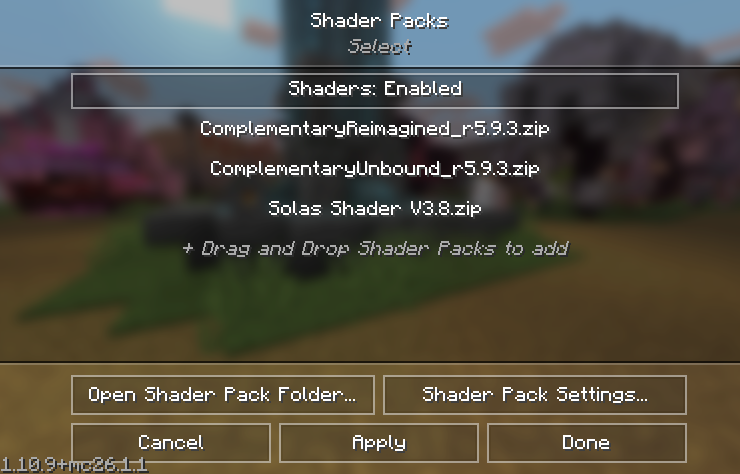
- Sodium + Iris, lets you use shader packs to make it pretty
- CC: Tweaked, puts computers in your minecraft so you can computer while you computer (they run the Lua programming language, have floppy disks and stuff)
- Effortless Building, simplifies building basic shapes like walls, columns, spheres, cubes, and more through a radial menu accessed by pressing left-alt. Has undo and redo support, and also can place blocks in an array, mirror placed blocks, or randomize placed blocks according to a block palette you've configured. See the mod listing for more information!
- Xaero's World Map and Xaero's Minimap, which are maps and support easy teleporting around the world and creating your own waypoints and points of interest, plus easy location sharing with other players
Continue to Getting Started
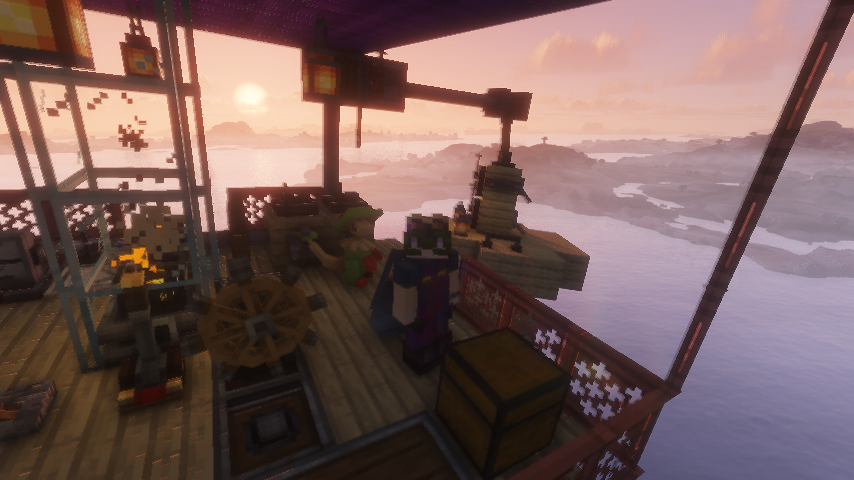
(Screenshot taken with Solas Shader v3.7b, not enabled by default in case your computer can't handle it)
Terminology
Some basic explainers for some of the terms used, listed alphabetically.
Architectural Terms
A glossary of Minecraft architectural terms that might be useful to know. If you've taken art history classes or played any building games before, you're probably familiar with a lot of these. Here's a more extensive list on Wikipedia as well.
Biome
Different regions in a world generated by Minecraft. Each region has its own unique terrain shapes, block materials, mob spawns, weather patterns, atmosphere/skybox colors, grass and tree colors, and more. Some things are only found in specific biomes, so be sure to explore the world and try to find them. There's around 60 biomes in version 1.21.1, (plus some more added by Cobblemon which trigger Pokémon spawns). In a recent update to Cobblemon, they changed the spawn behavior to prioritize family groups over individual spawns - it's very sweet to see roving packs of 'mons going about their business.
There's a logic to what biomes generate where, their size and frequency, and which biomes tend to spawn together. Categories of biomes in Minecraft include offshore biomes, highland biomes, woodland biomes, wetland biomes, flatland biomes, arid biomes, cave biomes, and Nether biomes. Villages and other predetermined structures can generate in different biomes.
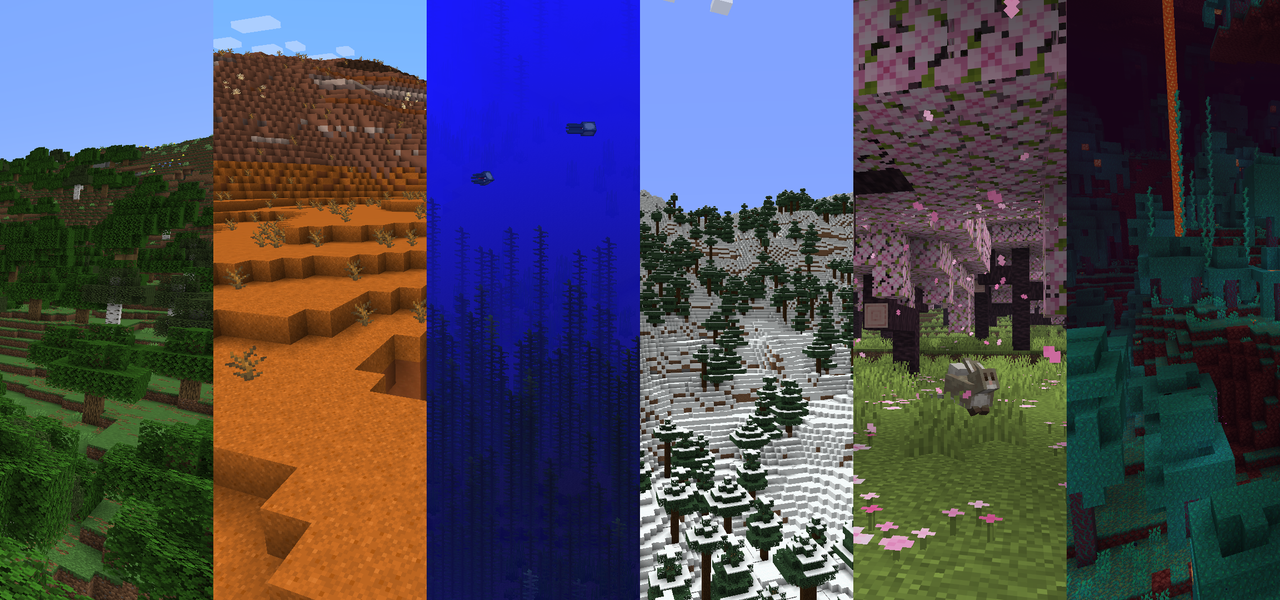
Some example biomes from the Minecraft wiki. From left to right, forest, badlands, deep ocean, grove, cherry grove, and warped forest. There's a lot of diversity to be seen, just like in the real world, and this also extends to cave biomes and Nether biomes.
There are mods to add a large variety of unique biomes, but it's better to have those in place from the start rather than add them to an already generated world.
Chunk
A chunk is a 16x16 segment of the world. The game divides maps into chunks to keep things manageable. Chunks extend from the bottom void of the world all the way up to the vertical build limit of 384 blocks. Chunks load in around the player as needed as you explore the world. Chunk generation is largely dependent on the map seed, but can generate with slight variations under some conditions. You can read more about the technical side of chunk loading here.
Client Side / Server Side
Client Side is whatever the player installs on their computer - some mods like font replacers are usually client side only, meaning only you would see the changes (your computer!). Server Side mods usually need to be installed on both Server and Clients. Mod hosting sites like Modrinth or Curseforge will say whether a mod is intended for Servers or Clients.
Game Modes
Different gameplay modes you can switch between. Switching modes is usually restricted to players with admin control, but we want everyone to pick how they play in our server. You can use slash commands to switch modes, or you can hit F4 to quickly switch between Creative and Survival.
Creative Mode - Creative Mode gives you access to all the blocks available in the game including spawn eggs for passive and hostile mobs (like a zombie or a sea turtle). We're playing in Peaceful mode so hostile mobs probably won't actually spawn. Every item or block you pick is effectively unlimited and this mode removes pretty much all challenge from the game. The only limit is your imagination (and server permissions).
It's very easy to build things in Creative Mode, but equally easy to break things by accident, especially chests or other containers. If you pop a chest, all the contents will spill out - do your best to put things back if this happens! If you're using the Effortless Building mod (bound to left-alt by default), you can very quickly place or replace blocks in huge chunks, and can use ctrl-z or ctrl-y to undo or redo anything placed in this mode.
Survival Mode - The default Minecraft experience, minus the danger. There is fall damage but it's basically negligible unless you fall from really high up (like into a ravine or something). You can die but there's no actual loss and no need to worry about losing items or experience on death.
Block placement is as expected, you will need to have specific blocks in your inventory to build with (either legitimate or through "cheating"), and tool strength and type matters for clearing things out of the way - eg, iron tools for mining ores, shovels or axes for dirt and trees. You can't accidentally break things just by misclicking.
Spectator Mode - I think you can just follow another player and see what they're doing
Adventure Mode - Not sure what this is about, not applicable for us. In Adventure Mode, you can't break or place blocks, or do anything that could be considered griefing. Seems cool for puzzle based maps, like an escape room sort of thing, or other multiplayer challenges.
Griefing
Intentionally antagonistic behavior in a multiplayer game. In a Minecraft context, this means things like stealing items from other players, breaking people's stuff or fucking around with preexisting buildings, intentional friendly-fire, abusing slash commands (like spamming the time-change commands) or otherwise being a dick. This is a much bigger deal in games where there's permadeath or actual consequences for dying, like losing your inventory.
We have a lot of bulk editing mods in this server meaning it's much easier to accidentally fuck up other people's stuff without intending to do so. We're currently looking into ways to protect areas to prevent any catastrophic losses of builds.
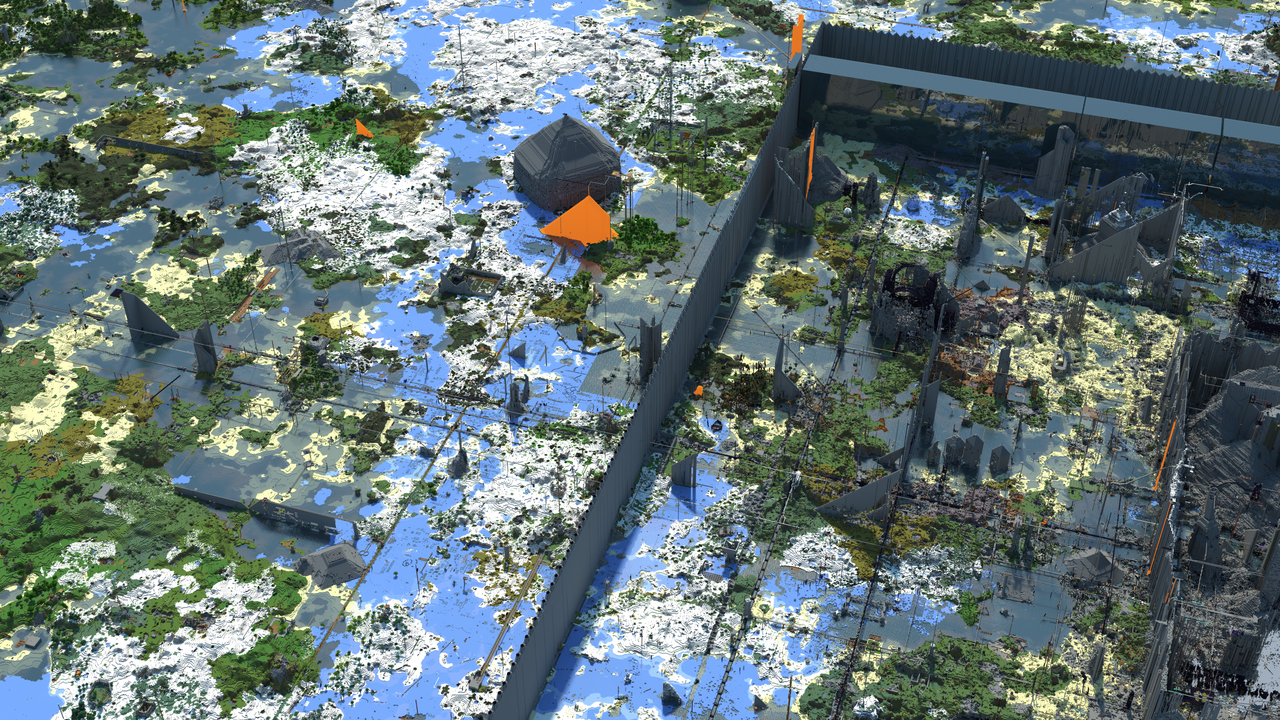
Below is an example of griefing in Minecraft from Wikipedia; the terrain looks incredibly fucked up.
Mods
Community made, unofficial modifications to a game. Anything that modifies the Java code from its vanilla state that is more complex than texture or audio swaps. Mods can be as simple as adding new block types (like furniture or new ores) and as complex as adding realistic physics to the game or porting the entirety of the Pokemon series and its game mechanics. Everyone needs to be running the same mods with matching versions or things get weird - like the game failing to launch, or blocks failing to place - usually the game will warn you about mod mismatches and stop you from joining the server until the conflict is resolved.
Optimization mods are mods intended to improve performance to keep the game running smoothly for everyone, such as reducing the amount of ram needed to run the server, limiting draw distance or simulation distance for things far away from active players, or fixing bugs from the base game.
On the Overview page, there's a short list of some of the mods we're running. You can view the full list on the Mods tab in Prism Launcher, or in game via settings.
Modloader
Modloaders are the software responsible for interfacing between the mods and Minecraft that allows mods to integrate with the game. There's many kinds of loaders with different capabilities. The loader we're using is Neoforge, a successor (and fork of) Forge from the original team minus the head dude (tl;dr, he sucks and is hard to work with), and mods built for Forge should also work on Neoforge. Besides Neoforge, there is also Forge, Fabric, and Quilt, plus some other ones used for older versions of Minecraft, and there are also mods to bridge compatibility between different loaders
If there are any mods you'd like to suggest for the server, make sure they're built for version 1.21.1 & Neoforge.
Modpack
A Modpack is a zip containing the mods as well as info about which version of Minecraft and Modloader to install. Installed via drag and drop with a launcher like Prism Launcher. Modpacks are a curated collection of mods intended to be used together, and contain all necessary dependencies needed to play.
Resource Pack
Resource Packs allow changes to textures, sounds, splash screens, fonts, translations, etc without any code modification. Resource Packs are also in .zip format and installed via drag and drop, or installed directly through a launcher. Previously referred to as texture packs, renamed when more asset types became supported. Resource Packs are entirely client side and can be freely changed by the players on a server. Resource Packs aren't considered Mod mods since they don't modify game code.
Shader Pack
Shader Packs are mods that enhance the visuals of the game. They can add things like volumetric clouds, waves and caustics in the water, bloomy lighting & raytraced lighting effects, and more. Shader packs are client side so every player might have a completely different visual experience within the same server. Some shaders are more like a vanilla+ experience, while some make it feel like totally different game, similar to playing a game with ReShade.
There's a range of options available for shaders, from cartoonish or fantasy, to hyper realism, and some are specifically tuned for low-end computers with onboard graphics. Some example shaders to check out: Aurora Fantasy, Complementary-Unbound, Complementary-Reimagined, Rethinking Voxels, BSL Shaders, and Sildur's Vibrant Shaders.
We picked Solas Shader to be the default for the server because it works well with the mod loadout at a modest performance cost. You're free to use whatever shaders you want if you're not into this look. You can also adjust parameters to improve performance or visuals as needed.
Skin
The appearance of your player model! These are connected to your Minecraft account and can be changed through Prism Launcher on the accounts tab. You can browse a site like Skindex or make your own skin with a template or a browser based editor like this one. You can make your character look like whatever you want, like Dog in Business Suit, Hatsune Miku, or Baked Beans Where There Shouldn't Be Beans. Skin textures are 64x64 pixels, saved in png format, and support transparency.
Custom skins go into a folder in your Instance directory and can be viewed and swapped between in Prism Launcher. There's also capes but those appear to be limited rewards for people who attended official Minecraft events, and custom capes require a mod to display.
Slash Commands
Commands that can manipulate the game state, change your position in the world, modify your inventory, and more; also known as console commands in other games. Read more about specific commands here!
Vanilla
An unmodified Minecraft game, client or server. This term can be used for any piece of software.
Getting started
Prerequisites
- A license for Minecraft Java edition. If you do not already have this, message Viv
- computer running windows / macos / linux
- around 5gb free space to hold the mods and map data
- At least 16gb ram probably (we have the game set to use around 8gb of ram which seems to work alright)
Installing Minecraft (via Prism Launcher)
First download and install Prism Launcher, we will use this to install the modded version of Minecraft you will need to use to connect to the server. You will only be able to connect if you are running the exact same Modpack as is on the server. (Be sure to check this wiki for updates!)
You may need to login with your Minecraft account by clicking on the Account button in the upper right of the program window. It should walk you through what's needed to login.
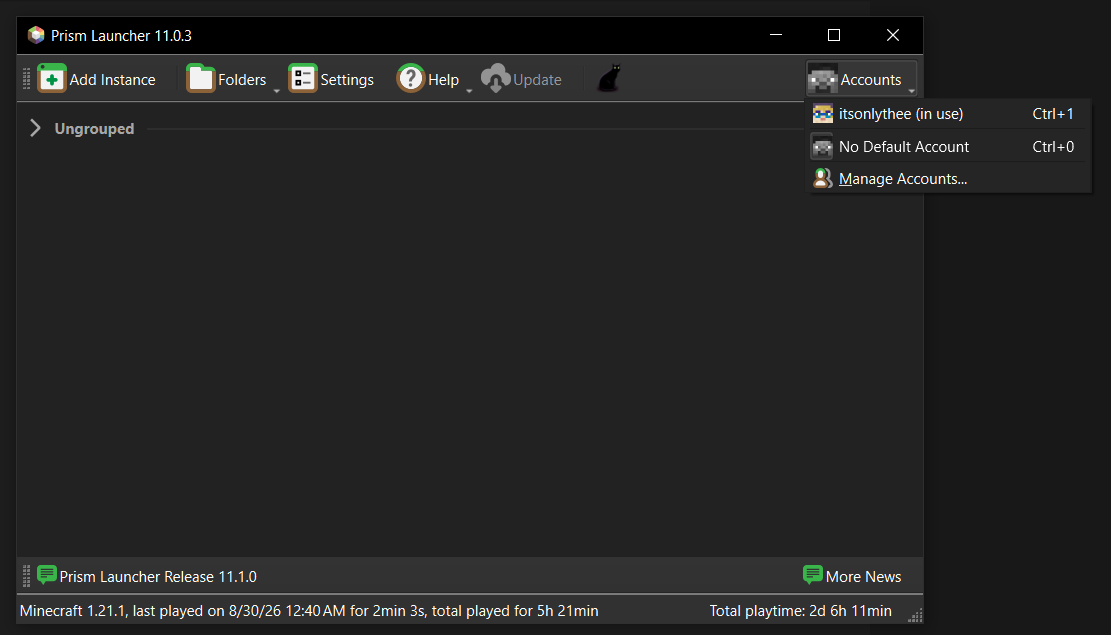
Prism Launcher allows you to create and manage different instances in Minecraft, meaning you can have multiple copies of the game running different versions with different loaders and completely different mod loadouts, as well as manage different accounts. When editing an instance, you can download custom Shader Packs, Mods, Resource Packs, and other cool things for your game directly in the launcher, no need to go seeking things out manually anymore. You can also adjust Java settings (like how much ram to allow Minecraft to use) and manage your screenshots.
Normally, you'd have to setup an instance manually and search for any required mods, but we have a Modpack ready to go. A Modpack is a zip containing the mods as well as info about which version of Minecraft / Neoforge to install. Modpacks are easy to install, just drag and drop onto your launcher and it should unpack everything needed to play.
Currently I am sharing my modpack via OneDrive. Click here to download it!
You probably want to get the latest one. The naming scheme I am using is:
"cobblemon 2026-09-18-a.zip": A snapshot of the modpack on that date. If I need to make multiple changes on the same day I increment the letter (so 2026-09-18-z would be a very bad day where I changed and republished the modpack 26 times)
Drag the Modpack zip into the main Prism Launcher window, and it should open a 'import' dialog. Click ok to confirm, then pick the instance and click Launch to start the game.
You will not be able to connect to the server until you have also completed the 'connecting to the server' steps, but it is a good idea to launch and make sure it does start - try creating a Single Player world to make sure everything seems to be working.
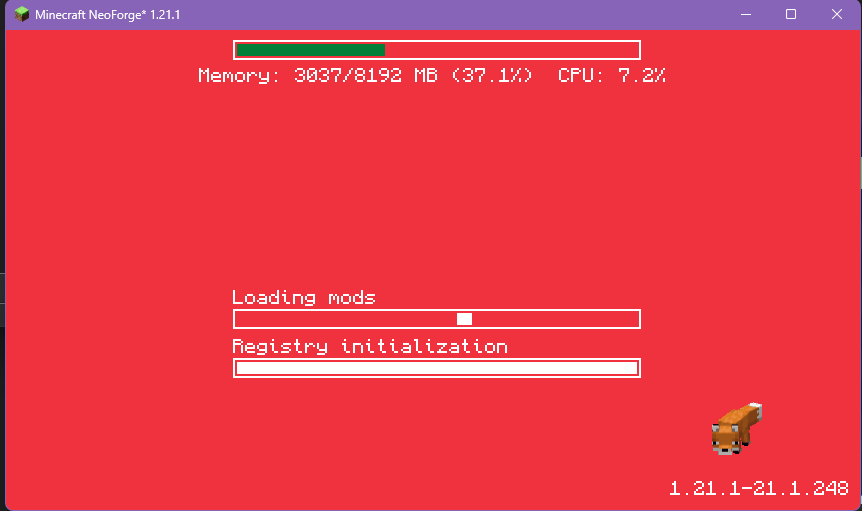
Your game will look like this while it is starting, and can take a couple minutes depending on your computer
Once you've gotten the game up and running, check out our What Should I Do page, or read up on some terminology.
Connecting to the server
Since this is a private server that I don't want to directly expose to the internet, you will need to install a program that will let you actually reach the server.
I am using something called Tailscale for this. It creates a private virtual network that lets our computers talk directly to each other. If you have used Hamachi before, it is like that. For what we're doing, it's free to use.
| 💁🏻♀️ℹ️ Note: you should only install this sort of thing if you trust the person who is asking for it; it bypasses some typical security measures by letting our computers directly contact each other. |
- Create an account, https://login.tailscale.com/start
- You'll need to use a google, microsoft, github, or apple account to sign in. Keep track of which one you use for this.
- As soon as you have an account, ask me for a tailscale invite link. This is required so that you can 'see' my pc
- Download and run the installer https://tailscale.com/download
- You should now have a tailscale icon in your system tray, make sure you are signed in
- Click the invite link I hopefully sent back to you
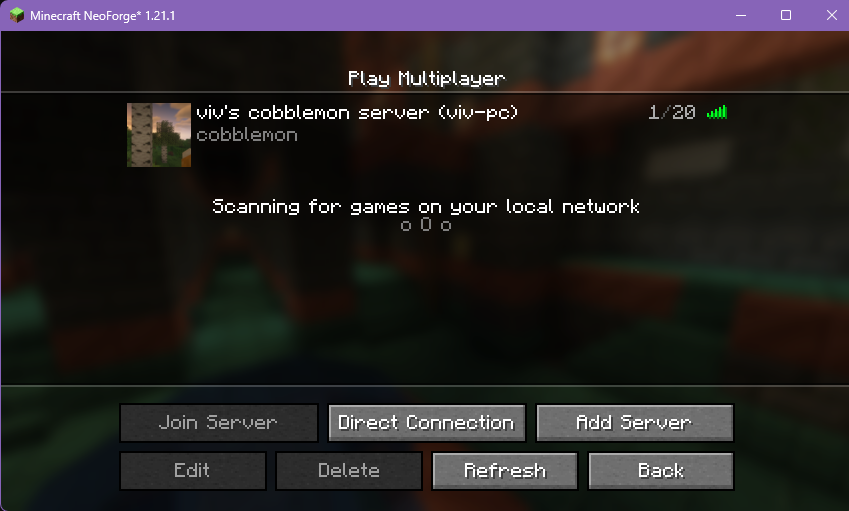
- You should be able to right click on the tailscale icon, go into 'network devices', and see my name. Inside of that should be the server (currently this is viv-pc.cow-bebop.ts.net, but subject to change (and if it does change, I will need to give you a new share link))
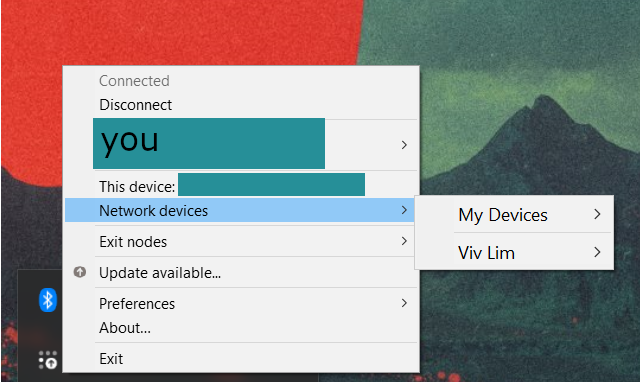

If you see that, you should be able to connect to the server (assuming that it is up)
Playing Minecraft (what should I do?)
Okay, I'm in the game. Now what?
Welcome! It's Minecraft with a lot more going on than the last time you may have played. The game is very freeform, especially in Peaceful mode.
Some things you might want to try:
- catch some Pokémon and fill out your Pokédex
- go exploring
- do some strip-mining in survival & hang out in a cave
- hop on a train and ride it around
- do some farming (vanilla crops or berries)
- pick somewhere on the map to explore (press M to bring up the map, right click for teleport options)
- browse the thousands of blocks we have available to build with
- do parkour or grind on some rails and fly around with an elytra
- build some things in Creative mode
- recreate your childhood home or school
- make some giant pixel art of a favorite character
- learn about and build some cool things with redstone
- make an airship with Create: Aeronautics
Here's a 'needlessly long list' of ideas from the Minecraft subreddit.
Personally, I've been enjoying hopping around to random spots on the map to see what biomes spawn and what sort of Pokemon I can find there, then building a matching base with PC & healing station at it, or expanding out the train network. I've also had a good time building out shops at what I've called The Mall Interchange, a big train hub running through a vaguely brutalist megastructure. Be sure to check all the storage containers in the convenience store!
Server Etiquette
- Basic expectations: don't be a dick
- Don't break any existing structures on purpose, fix things if you break them by accident
- Don't build on top of existing structures unless given permission (unless you find something unoccupied and generated by the game)
- Don't loot people's chests without permission
- No griefing
- Try to warn people before teleporting to them (avoid jumpscares lol)
- Be as chatty as you want (or not)
- Ask for permission before inviting new players
Useful Slash Commands
Some useful slash commands to know. Hit T to bring up the chat window and begin typing. Tab will autocomplete suggested commands. You can read more about them here.
Some commands may require admin to use, we're gonna see what we can do about that.
| /gamemode survival |
switch to survival mode |
| /gamemode creative |
switch to creative mode |
| /time set day|noon|night|midnight |
set global game time - also accepts numbers like 6 for 6am, 15 for 3pm |
| /weather clear|rain|thunder |
set global weather (rain makes snow in cold biomes |
| /spawnpokemon <pokemon> [attributes] |
example - /spawnpokemon shiny abra ability=synchronize |
| /tp @playername | /teleport @playername |
teleport to named player instantly |
| /locate structure <structure> |
get the coordinates for the nearest instance of a structure |
| /locate biome <biome> |
get the coordinates of the nearest biome within 32x64 blocks (ex: minecraft:plains) |
| /locate poi <poi> |
get the coordinates of the nearest point of interest within 256 blocks |
| /seed |
displays the world seed, useful for webapps that can display MC maps like this one (this is the same one we're playing with) |
Updating the modpack
Download the modpack from here
Prism launcher makes it easy to get set up and initially install the modpack, but updating is a little more complicated. Reinstalling the modpack won't bring your settings with it :(
To update you usually only need the mods folder. See the modpack changelog to confirm (if you aren't sure, it is easiest to re-install)
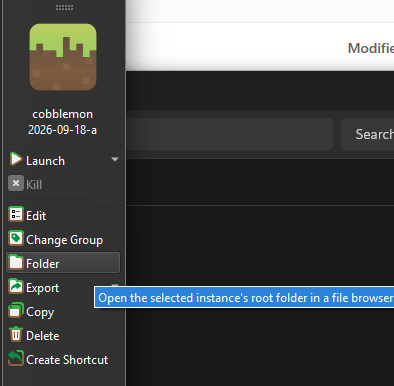
In prism launcher click 'folder' to open the instance's folder
Double click 'minecraft' and it will probably look something like this
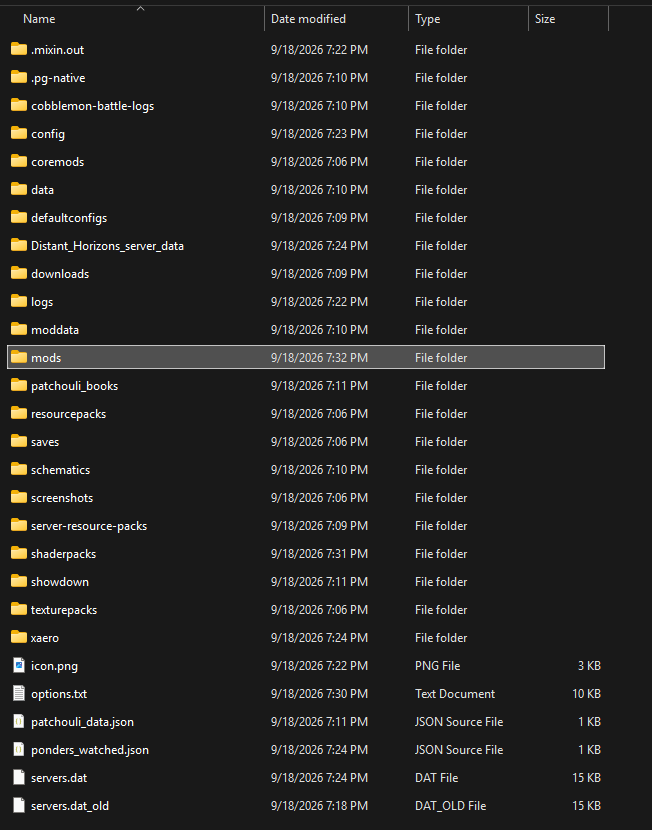
Rename the existing 'mods' dir to something else (so minecraft won't look at it. "old mods" is ok), and then replace it with a fresh mods dir from the modpack's zip file.
You can't just extract the modpack directly into your existing instance without cleaning the existing mods, newer versions of mods have different filenames so you can end up with duplicates which might not work.
Modpack changelog
See Updating the modpack for instructions. Download it from here
cobblemon
2026-10-02-a
Downgrade gadgets and gizmos back to 1.2.4, Add https://modrinth.com/mod/create-coasters-simulated
2026-09-27-a
Update https://modrinth.com/mod/create-aeronautics-gadgets-and-gizmos to 1.2.5
2026-09-23-b
Remove airburst, ccatmos, veil
Also remove Chunky (it was not supposed to be there, and was breaking distant horizons!)
2026-09-23-a
Updates the default server address to minecraft.cow-bebop.ts.net, instead of viv-pc. Also adds a pile of stuff I wanted ~
ccatmos-1.1.1
create_pocket_factory-0.1.6
veil-neoforge-1.21.1-4.5.0
clientsort-neoforge-3.89.1+1.21.1
create_mobile_packages-1.21.1-0.7.7
gadgets-and-gizmos-bundled-V1.2.4
ParCool-CompatibilityAddon-1.21.1-3.4.3.3-1.2.1
better_fishing-1.0.0-neoforge-1.21.1
enchanted_fishing_line-1.0.0-neoforge-1.21.1
airburst-0.1.0
2026-09-19-a
Adds a big pile of performance improvement mods. It should start faster and use less resources. Solas Shaders are enabled by default now, so it could use more gpu resources than before (turn off shaders or switch to a different shader pack if your computer struggles)
You can now press F4 to switch game mode.
Adjusted defaults for the world map and minimap
spark is added for performance profiling
List of client side mods added:
- lithium-neoforge-0.15.4+mc1.21.1
- connector-2.0.0-beta.17+1.21.1-full
- modernfix-neoforge-5.27.24+mc1.21.1
- SmoothBoot-NeoForge+1.21-1.0.0
- spark-1.10.124-neoforge
- yeetusexperimentus-neoforge-87.0.0
- chunksfadein-neoforge-3.0.26-1.21
- ferritecore-7.0.3-neoforge
- persistentgamemodeswitcher-1.0.3.9
2026-09-18-a
Initial publish of modpack
Mod notes
Minimap and world map
Basic usage
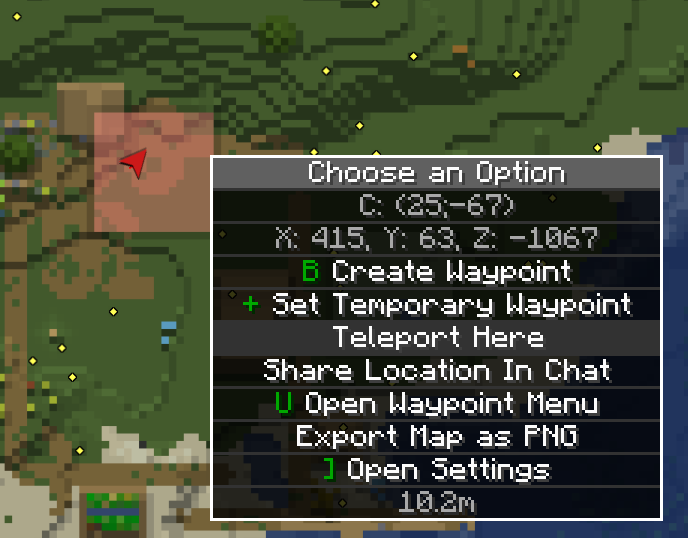
Press M to open the map. Right click to get a menu that lets you teleport or create waypoints.
Moving the minimap
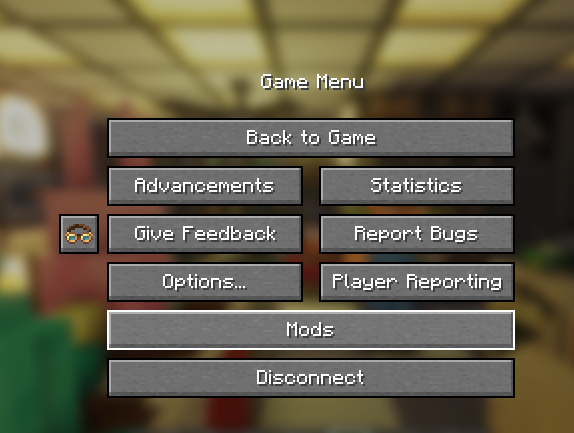
By default your minimap might overlap your pokemon roster, you can move it to the top right
Press esc, go to mods
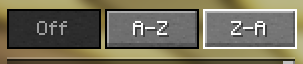
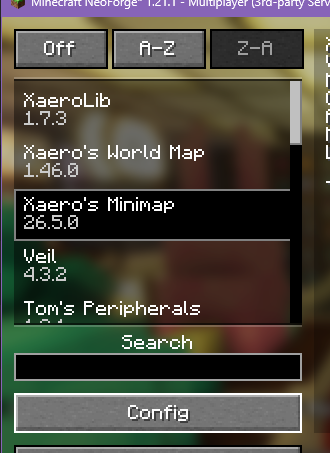
Click Z-A to sort (idk why but the search doesn't really work)
Click config for Xaero's minimap
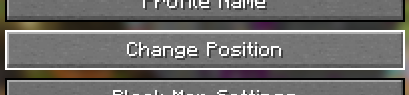
Fixing teleport
If teleport doesn't work:

Fixing teleporting to arbitrary points on the map
Open the map (M) and click the gear on the top left
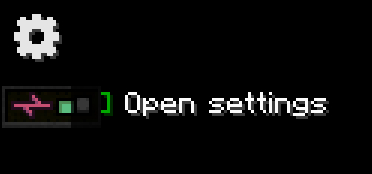
Fixing teleporting to waypoints
Go to the 'waypoint screen' (press U) and click options
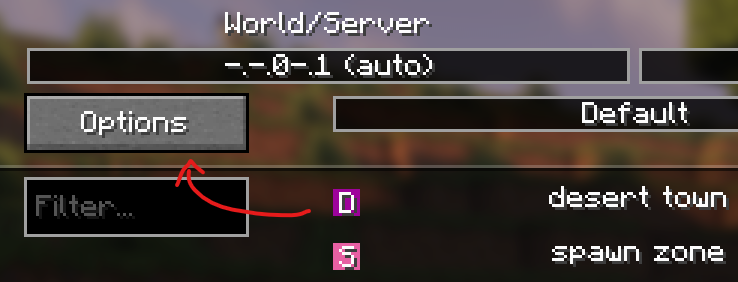
go into Teleport Command
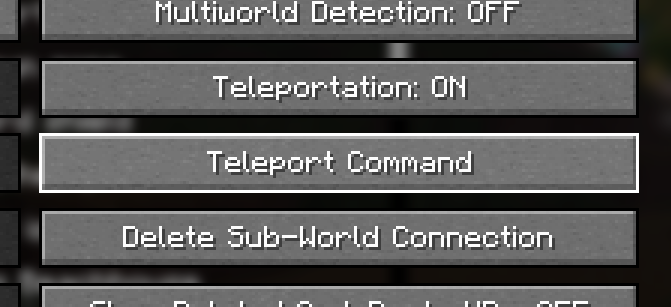
Click "use default" to switch it off and then delete the "@s" from both commands (should look like this)
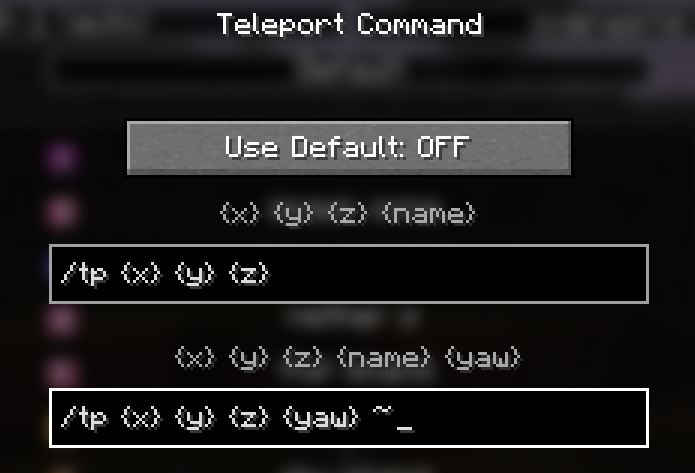
Slash Commands
Slash Commands can manipulate the game state, change your position in the world, modify your inventory, and more; also known as console commands in other games.
Some useful slash commands to know. Hit T to bring up the chat window and begin typing. Tab will autocomplete suggested commands. You can read more about them here, but most of these aren't relevant to us.
Some commands may require admin to use, we're gonna see what we can do about that.
| /gamemode survival |
switch to survival mode |
| /gamemode creative |
switch to creative mode |
| /time set day|noon|night|midnight |
set global game time - also accepts numbers like 6 for 6am, 15 for 3pm |
| /weather clear|rain|thunder |
set global weather (rain makes snow in cold biomes |
| /spawnpokemon <pokemon> [attributes] |
example - /spawnpokemon shiny abra ability=synchronize |
| /tp @playername | /teleport @playername |
teleport to named player instantly |
| /locate structure <structure> |
get the coordinates for the nearest instance of a structure |
| /locate biome <biome> |
get the coordinates of the nearest biome within 32x64 blocks (ex: minecraft:plains) |
| /locate poi <poi> |
get the coordinates of the nearest point of interest within 256 blocks |
| /seed |
displays the world seed, useful for webapps that can display MC maps like this one (this is the same one we're playing with) |
Setting up other modpacks (.mrpack format)
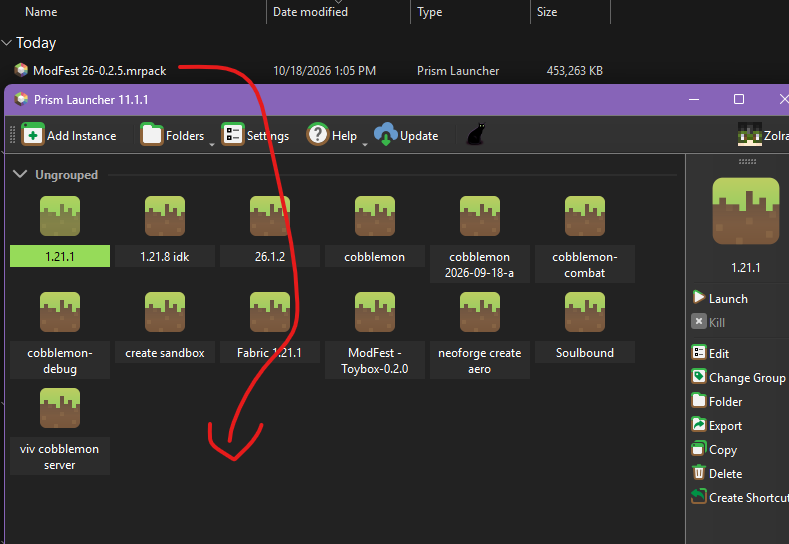
- Have Prism Launcher installed
- Download the .mrpack file
- Drag the mrpack into prism launcher

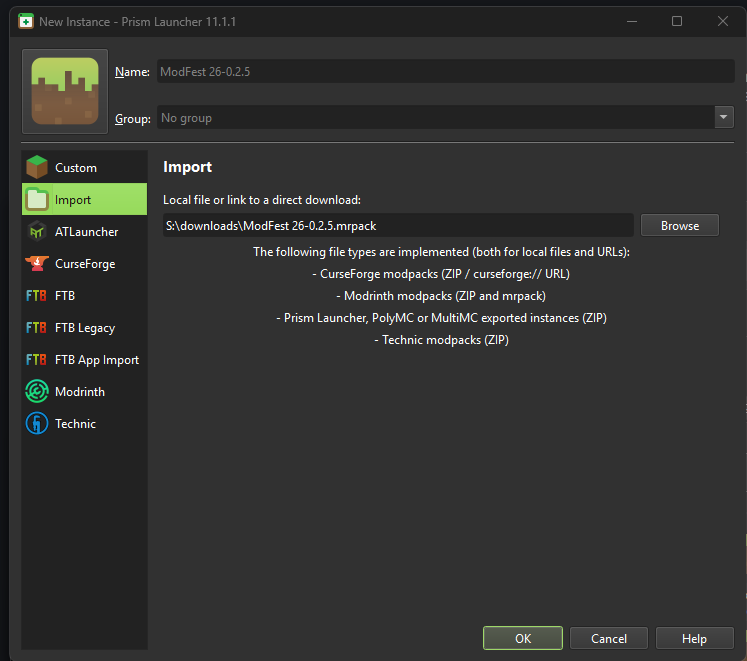
- Leave this as is and press OK

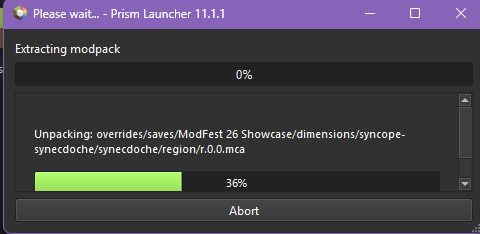
- Wait for stuff to download

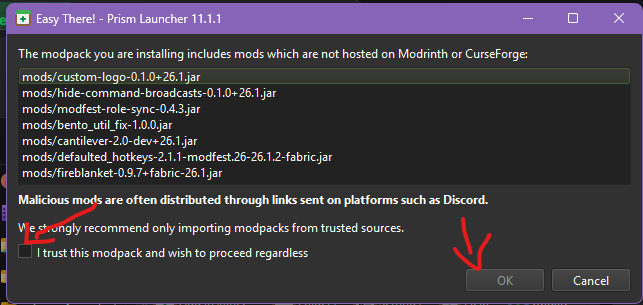
- If you see this dialog, check the box and click ok

- You should now have it as a visible instance in prism launcher that you can edit and launch
Appendix: if you want to set up shaders
it might break some stuff in the pack but if you wanna try
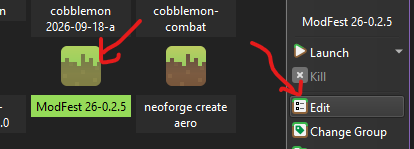
- Edit it

- Mods -> Download mods and install Sodium, unless it is already installed. Also install Iris Shaders
- Shader Packs -> Download packs

- Pick something you like (I'm using Solas Shader on my neoforge server by default)
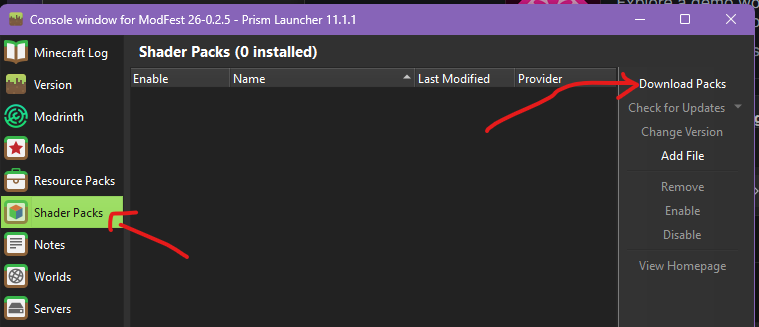
Note you can download and add shader packs while the game is running so you can try out more stuff
Ingame to select shaders,
- Press esc and go to options
- Video settings
- You should see iris on the left side

- Shader list should look like this, click one and apply